

What is the Restate Operator?
The Restate Operator is the recommended way to deploy Restate services on Kubernetes. You can find its source code, releases, and complete resource specifications on GitHub.restatedev/restate-operator
Loading repository data...
The operator extends Kubernetes with resources for running Restate and deploying your service applications:
For service deployments, the operator:
- Deploys your application with ReplicaSets or Knative Serving
- Registers its SDK endpoint with Restate Cloud, BYOC, or a self-hosted Restate environment
- Creates a new service revision when your pod template changes
- Keeps old revisions available until their invocations have drained
- Establishes a secure outbound tunnel when connecting private services to Restate Cloud
Operator 3 introduced Helm-managed CRD upgrades. The first upgrade to version 3 requires a one-time CRD ownership handoff. Follow the operator 3 upgrade instructions before upgrading an existing installation.
Deploy a service to Restate Cloud or BYOC
Restate Cloud must be able to send invocations to your SDK endpoint. Services in a private Kubernetes cluster connect through an outbound tunnel, so you do not need to expose a public ingress. TypeScript and Go services can run the tunnel client in the application process. Other SDKs use the standalone tunnel client managed by theRestateCloudEnvironment.
Prerequisites
Before you start, you need:- A Restate Cloud or BYOC environment
- A Kubernetes cluster with a current
kubectlcontext - Permission to create namespaces and Custom Resource Definitions
- Helm
- A container registry that your cluster can pull images from
Run it locally on kind
Run it locally on kind
If you don’t have a Kubernetes cluster, you can run it locally with kind.Set
kubectl context to kind-kind:Deploy the Restate Operator and connect to Restate Cloud
You perform these steps once for each Kubernetes cluster and Restate Cloud environment.1
Install the Restate Operator
Install the Restate Operator via Helm:To install the operator, you need permission to create namespaces and CRDs.Wait for the operator to become available:
2
Create the service namespace and Restate Cloud Secrets
Create an API key in Restate Cloud at Developers > API Keys > Create API Key. Save the
key_ value in a file named token.
Create the secret in the operator namespace:3
Configure the Restate Cloud environment
Create a file named Set the environment-specific fields:
restate-cloud-environment.yaml:restate-cloud-environment.yaml
environmentId: theenv_...value in the top left corner of the Restate Cloud UIsigningPublicKey: thepublickeyv1_...under Developers > Security > HTTP endpointsregion: the identifier shown next to the environment ID, such asusoreu. A BYOC region can contain multiple labels, such as<environment>.byoc
The
RestateCloudEnvironment also manages a standalone tunnel client. Services that use tunnelMode: in-process connect directly from their application pods and do not use that client in the invocation path.Deploy a service
Choose your SDK and follow the steps to deploy the example service.- TypeScript
- Go
- Java
- Kotlin
- Python
1
Download the TypeScript template
If you use an existing service, replace its HTTP listener with an in-process tunnel before building the image. Otherwise, download the TypeScript Kubernetes template, which already starts the tunnel:The template contains a sample
Greeter service, a Dockerfile, and k8s/deployment.yaml.Then, build the image and push it to a registry that your cluster can access:2
Configure the Restate API key
Create the namespace where your services will run:Your service needs the Restate API key in its namespace for the in-process tunnel.
Use the same token as for the Restate Cloud environment or create an API key in Restate Cloud at Developers > API Keys > Create API Key and save it in a file named
token.3
Deploy and verify the service
In Apply the manifest:
k8s/deployment.yaml, replace the example image with the image you pushed:k8s/deployment.yaml
Check that the deployment is ready
Check that the deployment is ready
Inspect the deployment and its pods:When the deployment is ready, the operator registers it with Restate Cloud and handles service versioning.
Debug a deployment that is not ready
Debug a deployment that is not ready
Inspect the deployment status and application logs:
How do the Restate Cloud tunnels work?
How do the Restate Cloud tunnels work?
TypeScript and Go use an in-process tunnel. Each application pod opens an outbound connection directly to Restate Cloud. The operator injects the Cloud environment, region, signing key, and versioned tunnel name. Your deployment mounts the tunnel authentication Secret.Java, Kotlin, Python, and Rust use the standalone tunnel managed by the 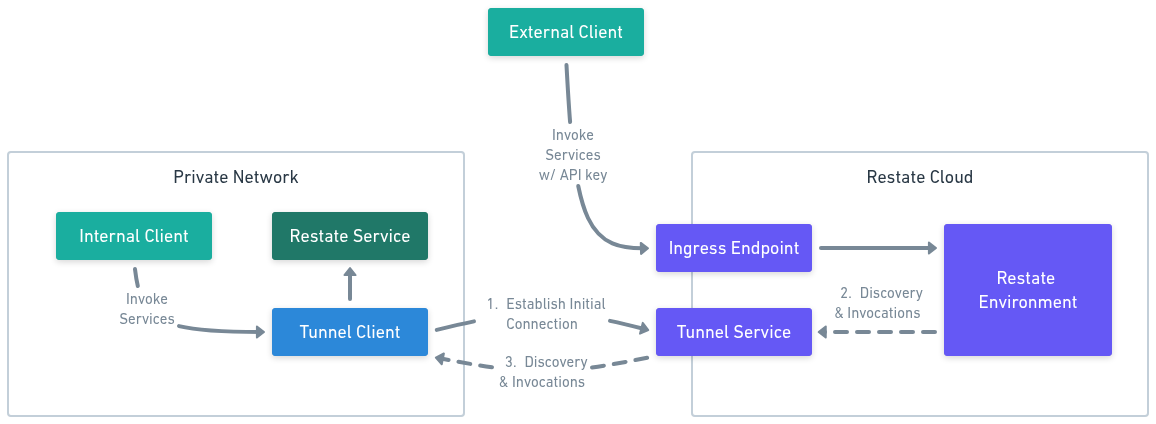
RestateCloudEnvironment. The application keeps its normal HTTP listener. The operator creates a Kubernetes Service for that endpoint, and the standalone tunnel forwards invocations to it. This mode also supports Knative deployments.The tunnel client opens an outbound connection to Restate Cloud, so your service needs no public ingress and no inbound ports.- Connect. The tunnel client resolves the tunnel servers for your region and dials out to them, authenticating with your API key. It holds one connection per tunnel server and redials on its own if a connection drops.
- Register. Each connection is keyed by your environment and tunnel name. The deployment URL you register encodes both, plus the address the tunnel client should forward to.
- Invoke. Restate Cloud sends discovery and invocation requests for that deployment to the tunnel server, which streams them down one of the connections registered under that tunnel name.
- Forward. The tunnel client forwards each request to your service’s endpoint inside your network, and responses stream back over the same connection.
Deploy a service to self-hosted Restate
Register your service with a self-hosted Restate environment. This example uses aRestateCluster resource named restate in the same Kubernetes cluster, so no Restate Cloud tunnel or Cloud API key is required.
To deploy a self-hosted Restate cluster with the operator, see Deploy Restate on Kubernetes.
1
Install the Restate Operator
Install the Restate Operator via Helm:To install the operator, you need permission to create namespaces and CRDs.
2
Create the RestateDeployment
Create a Once applied, the Restate Operator registers your service and handles versioning.
RestateDeployment that references your RestateCluster named restate:service-deployment.yaml
Read the
RestateDeployment documentation, or view the full specification as Pkl or YAML.3
Invoke your service
Go to the Restate UI’s Playground and send a request to your service.
Knative Deployment
TheRestateDeployment CRD can use Knative Serving instead of ReplicaSets. The operator then manages the Knative Configurations, Routes, Restate registration, and service versions while Knative provides request-based autoscaling and scale-to-zero.
Install Knative Serving before applying a Knative-mode RestateDeployment:
RestateCluster named restate. To register with Restate Cloud or BYOC, use cloud: my-cloud-env instead.
The optional knative.tag controls deployment identity:
- Omit the tag to use the pod template hash and create a new version for every template change.
- Change the tag to create and register a new version while the previous version drains.
- Not recommended / dangerous: Keep the same tag for an in-place update to the existing Restate deployment. Only do this when the change is compatible with invocations already assigned to that deployment.
h2c for HTTP/2 or http1 for HTTP/1.1. In-process Restate Cloud tunnels are not supported in Knative mode.
Horizontal scaling and load balancing
You can scale your services horizontally by running multiple pod replicas. With an in-process tunnel, the tunnel server balances invocations across replicas without an additional load balancer in the invocation path. For autoscaling configuration and examples, see the Restate Operator documentation:- ReplicaSet autoscaling: Scale the latest revision with your own HPA and draining revisions with
spec.autoscaling. - Knative Serving: Use request-based autoscaling and scale-to-zero.
Direct Kubernetes deployments
Use the Restate Operator when you want automatic registration, version management, and operator-managed scaling.
Deployment and Service resources.
A Kubernetes Deployment of more than one replica is generally appropriate,
and a Kubernetes Service is used to provide a stable DNS name and IP for the pods.
Here is an example manifest with a single pod in Kubernetes:
http://<service>.<namespace>:9080.
⚠️ Note that this setup will not account for keeping around old code versions, so updating your code can break in-flight invocations.
Check the versioning documentation for more information.
Knative without the Restate Operator
Knative without the Restate Operator
Restate services also run on a plain Knative Or as a manifest:The service is reachable at
Service, without the operator. There are no special container requirements beyond naming the port h2c:http://<service-name>.<namespace>, but to handle versioning it is preferable to register the revision URL, such as http://<service-name>-0001.<namespace>, as part of your deployment workflow.Knative exposes the service through the Ingress by default. Restate does not require this, so you can pass --cluster-local to the creation command to disable it.Learn more in this blog post and the Go example.